How to View CCTV Across Multiple Branches: Head Office, Mobile, and Permission Levels
Introduction
Opening a second or third branch is a good sign for any business, but it often creates a problem that owners do not expect. A camera setup that worked perfectly for one shop suddenly feels inadequate once branches are spread across different districts. In the past, walking into the shop and glancing at a screen was enough to understand what was happening. With several branches, nobody can visit every shop every day, let alone stay on site all day long. That is when the real questions appear: how can head office view every branch at once, how can the owner check in from a mobile phone while out, who should be allowed to see which branch, where should recordings be stored, how will anyone know when a branch goes offline, and how should a new branch be added later?
This article answers those questions from a practical point of view. It starts with central viewing at head office, then covers mobile viewing, permission levels, recording storage, offline alerts, and adding new branches. The principles apply whether you currently run two branches or a small branch network. The difference is only one of scale and how detailed the management needs to be. Thinking through the whole arrangement before expanding will save a great deal of confusion later, when problems are much harder to fix under pressure.
How Head Office Views Every Branch at Once
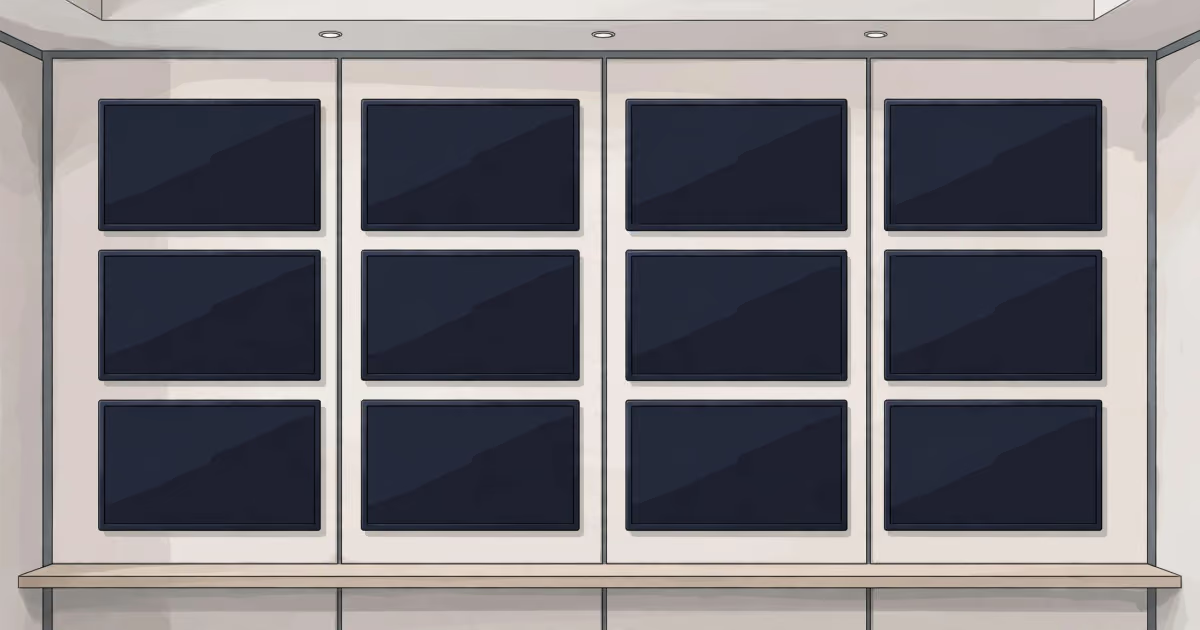
Central viewing means, in simple terms, that one location at head office can display live pictures from every branch, without calling each branch one by one or opening a different application for each shop. In practice, pictures from branch cameras are brought together over the network to a viewing position at head office. That position might use a dedicated screen wall or a dedicated computer, divided into sections showing key areas from each branch, such as entrances, cashier positions, storeroom doors, and rear corridors. The owner can sit down at head office and immediately see which branch is busy, which entrance looks unusual, and which branch may need attention, without guessing.
Central viewing does not mean staring at screens all day. Nobody can watch dozens of picture sections continuously, and watching for too long only increases the chance of missing something. A more realistic approach uses two layers. The first layer is an overview, with small sections showing the general situation at every branch, so that obvious problems stand out. The second layer is a detailed view: when a branch needs follow-up, for example after a customer complaint, a stock discrepancy, or a staff report of suspicious activity, the viewer can open that branch and that camera and enlarge the picture to examine it carefully. This layered approach keeps the workload manageable at head office and reduces the risk of overlooking important detail.
It is also worth deciding where the viewing position should be, and when viewing should take place. The head office viewing position should ideally sit somewhere that visitors cannot simply walk into, such as inside an office, rather than in a public lobby where anyone passing by can see branch interiors. This protects the privacy of branch staff and customers, and it also prevents casual viewers at head office from seeing the internal operations of other branches. Viewing hours and purposes should also be agreed in advance, for example limiting viewing to business hours and to follow-up on specific incidents, rather than turning it into aimless all-day surveillance.
Viewing From a Mobile Phone While Out
Owners are rarely seated at head office all day. They visit customers, inspect branches, and take time off, yet they may still want to check branch conditions. Mobile viewing exists for exactly those situations: as long as the phone has a network connection, the owner can open an application and view live pictures from each branch. Common uses include checking whether a branch still has customers near closing time, looking at an entrance during heavy rain to see whether water is entering the shop, or viewing the scene immediately after a branch calls about an incident, so that decisions can be based on what is actually visible rather than on a telephone description alone.
Several precautions matter when viewing from a phone. First, login details must be kept safe. Account names and passwords should never be written on notes left on a desk, and the phone should not be handed to someone else to browse through branch pictures casually. Second, a phone screen is small, so mobile viewing suits a quick understanding of the general situation rather than a long and detailed investigation. When fine detail really matters, it is better to return to head office and review playback on a larger screen. Third, phones can be lost or stolen, so login should include an extra confirmation step where possible, and if a phone goes missing, the related login permission should be disabled promptly from another side, before anyone else can use that phone to view every branch.
One more practical point deserves attention: the smoothness of mobile viewing depends heavily on network conditions. If a particular branch has an unstable network, viewing that branch from a phone may stutter or disconnect frequently. That does not necessarily mean the cameras or the application are faulty. In many cases, the network side needs attention first. Planning should therefore consider not only where cameras are placed, but also whether each branch network is stable enough to support remote viewing. The section on network requirements below discusses this idea in more detail.
Permission Levels: The Owner Sees Everything, a Branch Manager Sees Only Their Branch, Ordinary Staff See Nothing
When branches share one central viewing arrangement, permission control is where disorder most easily appears. If everyone uses the same account and can see every branch, then the entire branch network is effectively exposed, nobody knows who viewed what, and if pictures leak, there is no way to trace who viewed them. Permission levels are therefore not extra bureaucracy. They are what makes a central monitoring arrangement sustainable over the long term.
A common and sensible division follows job roles. The owner and core head office staff responsible for operations can view every branch, because they carry responsibility for the whole network and must coordinate immediately when something happens. A branch manager can view only their own branch, which is enough for managing daily operations in that shop, such as watching customer flow at the cashier area or movement in and out of the storeroom, but not the internal pictures of other branches. Ordinary staff, in general, do not need to view live pictures or playback at all. Their work has no direct connection to camera pictures, and giving them access only increases the risk of leakage without any practical benefit.
Beyond which branches a person can see, it is also necessary to divide what they can do. Who can view live pictures, who can view playback, who can export or share a clip, and who can change settings or add and remove accounts should all be decided separately. Exporting clips deserves especially tight control, because once a clip has been exported, it becomes very difficult to control where it goes afterwards. Ideally, only a very small number of people can export, and every export should be recorded, noting who exported it, when, and for what reason, and which period the clip covered. With such records, any later question about a clip can be answered properly.
Permission levels must also be updated as staffing changes. When a branch manager moves to another branch, their permission should move with them, without retaining access to the previous branch. When someone leaves the company, their account should be disabled immediately, not left until the following month. These small administrative tasks are the true test of whether permission control works. Many systems fail not because the initial division was wrong, but because nobody followed up afterwards, old accounts accumulated, and eventually nobody knew who could see what.
Role Comparison Table
The table below summarises, in a simple comparison, what different roles should generally be able to see, and what they should not be able to do. The actual arrangement can be adjusted to suit company size and management habits, but the broad principle should stay unchanged: the wider the view, the greater the responsibility, and the narrower the permission, the lower the risk of leakage.
| Role | What they can see | What they cannot do |
|---|---|---|
| Owner and core head office staff | Live pictures and playback from all branches, plus the head office overview | Must not lend their account to others, and must not share clips externally without good reason |
| Branch manager | Live pictures and playback from their own branch only | Cannot see other branches, cannot change network-wide settings, and cannot freely export clips |
| Ordinary staff | Generally no live pictures and no playback | Cannot log in to the viewing system, and cannot export, share, or copy any clips |
| External maintenance or engineering personnel | Only the relevant camera pictures during maintenance, while accompanied by staff | Permission must be withdrawn immediately after maintenance, with no long-term login retained |
Recording Storage: At Head Office or at Each Branch
Central viewing and central storage are two different things. Viewing can be centralised while recordings remain distributed, and the choice between the two approaches deserves careful thought. There are two common models, each with advantages and disadvantages, and the right choice depends on management habits and the actual conditions at each branch.
The first model stores recordings at each branch separately. Each branch keeps its own recording equipment and records pictures from its own shop, while head office views live pictures remotely and connects to that branch only when playback is needed. The advantage is resilience: even if the network between head office and a branch breaks down, the branch keeps recording, so nothing is lost simply because the connection failed. The disadvantage is management effort, because head office must look after several separate recording setups, checking one by one which branch is running out of storage space or has an equipment problem.
The second model stores recordings centrally at head office. Pictures from each branch are sent to head office in real time and stored and managed there in one place. The advantage is centralised management: finding a clip from a particular branch at a particular time becomes much easier, since everything can be searched from head office, and backup and permission management are also simpler. The disadvantage is heavy dependence on the network. If the connection breaks down, pictures from that period may never reach head office, and the storage and management load at head office grows considerably as more branches are added.
In practice, many branch networks use a hybrid approach: each branch still records its own pictures, so that a network interruption does not leave a gap in recording, while head office keeps a central viewing position and a central place for managing important clips, making daily management and incident follow-up easier. That way, if one side has a problem, the other side still provides a fallback. As for how long recordings should be kept, that should follow company needs and internal policy, applied consistently across the whole network. One branch keeping recordings for a week while another keeps them for a month will only cause trouble when a needed clip turns out to be already gone.
How to Know When a Branch Goes Offline
The most worrying situation in central monitoring is discovering, only when a clip is needed, that a branch has been offline for days and nothing was recorded. This happens more often than people expect, usually because nobody checked regularly. A complete arrangement must therefore include offline alerts and regular checks, and must never rely on someone remembering to inspect each branch.
A safer approach is for the system itself to notify head office when a branch loses connection, for example by showing that branch as offline on the head office overview, or by sending a message to the responsible person. After receiving such a notice, someone must follow up, checking whether the cause is a branch network problem, an equipment problem, or something else, and restoring the connection as soon as possible. It is important to understand that an alert alone does not solve the problem. The alert is only the first step. Follow-up and recording must follow, otherwise frequent alerts will simply be ignored over time, and the warning system will lose its value.
Regular checks remain essential even with automatic alerts. For example, once a week at a fixed time, the head office person in charge can quickly view live pictures from each branch in turn, confirming that every branch is connected and recording normally. The check does not take long, but this habit is what catches smaller problems that do not trigger an automatic alert, such as a camera angle knocked out of position, a view blocked by stored goods, or a branch picture that frequently freezes. Turning the check into a fixed routine, with a named person responsible, a set frequency, and a clear follow-up process when problems are found, is what makes the arrangement complete.
Adding a New Branch Without Disrupting the Existing Arrangement
The moment that most tests a plan is often the opening of a new branch. If no standard approach was agreed at the start, every new branch forces the team to rethink connections, permissions, and the head office overview from scratch, and the arrangement becomes messier with each addition. If a standard approach was agreed from the beginning, opening a new branch simply means following the same process once more, which is naturally much smoother.
Before a new branch opens, a useful checklist includes: which positions in the new branch must be covered by cameras, such as entrances, cashier positions, storerooms, and rear doors; how the new branch pictures will join the head office overview, and how an extra section will be added to that overview; how the new branch manager account will be created, limited to that branch only; how recording storage for the new branch will be arranged, following either the branch storage model or the head office central model already in use; and whether the offline alert list includes the new branch. Settling these items during renovation and before opening day avoids last-minute rushing when the branch opens.
It is also wise for head office to watch a new branch more closely during its early period. Staff, routines, and equipment are all new, so small problems are more likely, such as a camera angle not yet adjusted, a position affected by glare, or staff still getting used to working routines. Watching more closely for the first few weeks allows problems to be corrected early, after which the normal checking frequency can resume. This is not a sign of distrust towards the new branch. It is a way to help the new branch settle quickly and keep the whole network at a consistent standard.
Network Requirements: Concepts Only, Not a One-Size Answer
When people discuss central viewing across branches, they often ask how fast the network must be. This article will not give a specific speed promise, because camera numbers, picture requirements, and usage habits differ from branch to branch, and no single figure suits every situation. A few concepts, however, are essential. First, upload capacity must be sufficient, because branches send pictures outwards for head office and mobile viewing, and insufficient upload will cause stuttering pictures or even no picture at all. Second, stability matters more than peak speed alone, because a network that drops frequently is of little use even when it is fast at other times. Third, as branches are added, the total amount of pictures to be transmitted grows, and the load on both the network and head office grows with it. Planning should leave enough headroom, rather than assuming that an arrangement designed for one shop can simply be copied across a whole branch network.
In practical planning, the safer approach is to have an engineer visit and assess the actual network conditions and usage needs at each branch before deciding the full arrangement. The visit can also cover cabling positions, equipment placement, and whether further branches are expected later, so that the solution does not need major rework shortly after completion. Network arrangements are not an afterthought to be considered after cameras are installed. They form the foundation of the whole central monitoring solution, and a weak foundation cannot be properly repaired later.
Privacy in Practice: Notices, Necessary Coverage Only
Branch cameras will inevitably capture staff and customers, so practical privacy steps must be handled properly and never treated casually. The basic steps include: placing notices in visible positions in each branch, informing staff and customers that closed-circuit television is in use; pointing cameras only at areas that genuinely need to be covered, such as entrances, cashier positions, and storeroom doors, and not at private spaces that do not need monitoring; limiting picture and clip access to authorised people only, which is exactly why the permission levels described earlier form part of privacy protection; and applying a consistent retention period across the network, handling clips beyond that period according to internal policy, rather than keeping them indefinitely.
One point that is often overlooked is staff induction. When staff join, they should be clearly told that the branch uses closed-circuit television, which positions are covered, how pictures are used, and who is authorised to view them. Explaining this clearly is not meant to intimidate anyone. It prevents misunderstanding and helps everyone understand that cameras exist to protect the shop and its staff, not to monitor individuals without purpose. For deeper questions beyond general practice, companies should seek advice suited to their own situation from an appropriate professional. This article covers general practical information only and does not offer judgement on individual cases.
Questions to Ask Before Choosing a Solution
By this point, the overall arrangement should be reasonably clear. Before inviting an engineer for an assessment, it helps to prepare answers to a few questions, so that discussion can start from a clear position. First, how many branches do you operate now, and are more branches expected within the coming year? Second, who at head office is responsible for viewing pictures and following up offline alerts, the owner personally, or a designated colleague? Third, does a branch manager need playback access, or is live viewing sufficient? Fourth, should recordings be stored separately at each branch, or managed centrally at head office? Fifth, which positions must definitely be covered, and which positions must definitely not be filmed? Preparing these answers means the assessment does not start from zero, and the resulting solution will fit actual operations much more closely.
Central monitoring across branches, in the end, is not simply about adding more cameras. It is a management arrangement covering how head office views, how mobile viewing works, who can see which branch, where recordings are kept, how offline branches are detected, and how new branches are added. All of these need to be thought through in advance. The clearer the thinking, the easier daily management becomes, and the more branches there are, the greater the value of a well-planned arrangement. If you are planning a new branch, or if viewing across your existing branches has started to feel disorganised, you are welcome to book a free on-site assessment, so that an engineer can visit your shop, understand your branch numbers and operating needs, and help you plan a suitable central viewing arrangement. Contact CCTV King: WhatsApp 6558 6806, telephone 2115 9219, website cctv-king.com.
FAQ
Does head office need a large team to watch every branch at once?
Not necessarily. With an overview showing small sections for every branch, and detailed viewing only when follow-up is needed, head office does not need many people staring at screens all day. The key is layered viewing, together with clear rules on which situations require immediate follow-up, rather than treating every picture as something that must be watched continuously.
Can a branch manager see pictures from other branches?
Under the permission principles described above, a branch manager should generally see only their own branch, not pictures from other branches. This protects the internal operations of each branch and prevents pictures from circulating unnecessarily. If a company has a special reason to adjust this, the change should be formally decided and recorded by the owner or head office person in charge, rather than arranged privately.
Can ordinary staff ask to view playback?
Ordinary staff generally have no permission to view playback directly. If a staff member needs to understand an incident for work reasons, such as a stock discrepancy or an accident, they should raise it with the branch manager or head office person in charge, who can review playback and follow up with proper authority, rather than handing login details to staff for direct viewing.
Is it better to store recordings at head office or at each branch?
Both models have advantages. Storing at each branch means recording continues even during a network interruption. Storing centrally at head office means easier management and easier searching. Many branch networks use a hybrid approach, with branches recording locally while head office handles central viewing and important clip management. The best choice should be decided after an engineer visits and assesses each branch environment and your management habits.
How will head office know when a branch goes offline?
The arrangement should include offline alerts, for example showing the branch as offline on the head office overview, or notifying the head office person in charge. After receiving a notice, someone must follow up, identify whether the cause is a network or equipment problem, and restore the connection promptly. In addition to automatic alerts, head office should check each branch regularly, so that connection and recording remain normal and are not left entirely to automatic notices.
Does opening another branch mean rebuilding the whole system?
Not if a standard approach was agreed from the start. Opening a new branch then means following the same process: deciding which positions need cameras, adding the branch to the head office overview, creating the branch manager account with permission limited to that branch, arranging recording storage, and adding the new branch to the offline alert list. The greatest risk is using a different approach for every branch, which becomes harder to manage as more branches open.
Is viewing pictures from a mobile phone safe?
Mobile viewing is convenient, but login details must be kept safe, the phone must not be casually handed to others for viewing, and if the phone is lost, the related login permission must be disabled promptly. A phone screen is small and suits a quick overview, while detailed investigation is better done on a larger screen at head office. With proper permission levels and login management, mobile viewing can be both convenient and secure.
Sources
This article provides general practical information. Related content can be found at: CCTV King camera surveillance system installation (https://www.cctv-king.com/cctv-camera-surveillance-system-installation/), shop and retail CCTV security system (https://www.cctv-king.com/shop-retail-cctv-security-system), office CCTV and access control security system (https://www.cctv-king.com/office-cctv-access-control-security-system), and contact CCTV King (https://www.cctv-king.com/contact/).